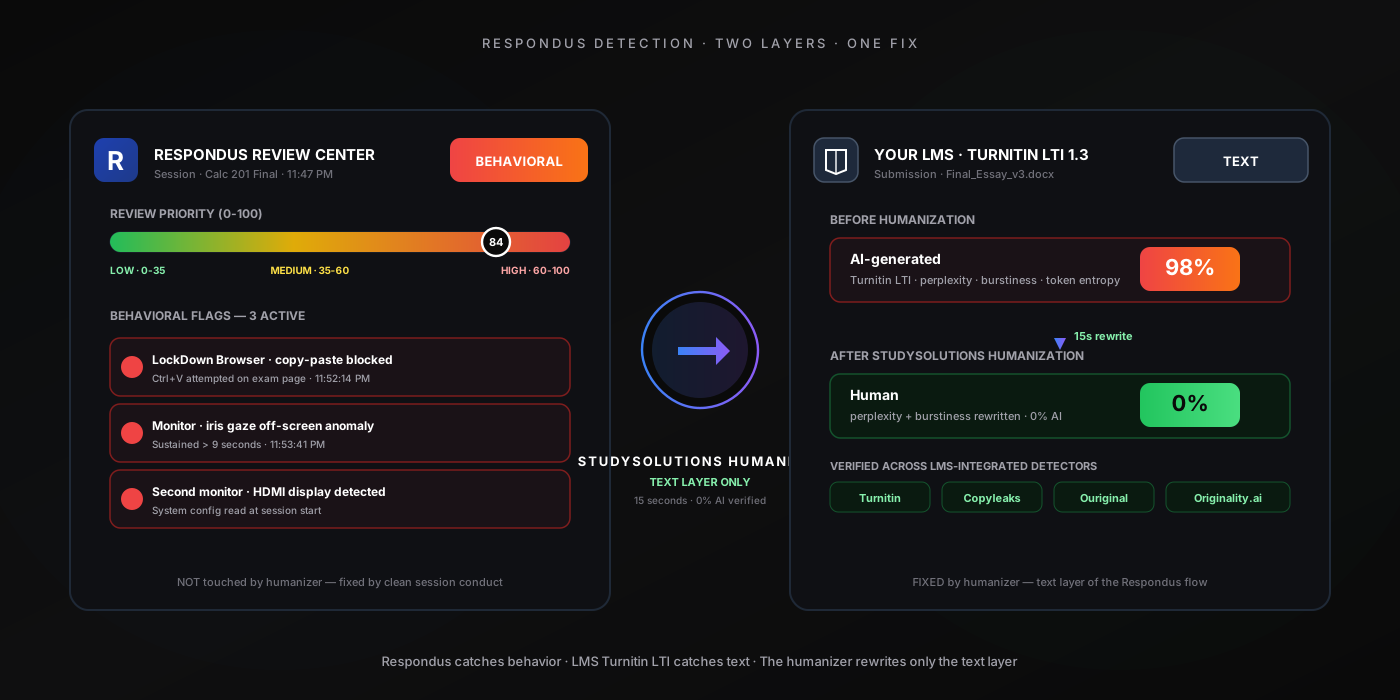
0%
AI Score After Humanizer
HIGH
Review Priority Cutoff
15s
Processing Time
$1.45
Starting Weekly
Yes, Respondus Detects AI — Here's What You Need to Know
Yes, Respondus detects AI. Respondus AI detection runs as two distinct layers most students never separate in their heads, and the way Respondus detects is fundamentally different from the way an LMS like Canvas or Blackboard detects — understanding that difference is the entire point of this post. Respondus ships two products that almost always run together: LockDown Browser (the kiosk-locked browser that takes over the machine for the duration of the exam) and Respondus Monitor (the webcam + mic + environment-scan recorder layered on top). LockDown Browser catches behavioral evidence at the OS and browser level — blocked paste attempts, blocked Alt+Tab, blocked extensions, blocked second monitors, VM and dev-tools fingerprints at install. Respondus Monitor catches behavioral evidence at the human level — facial detection (NOT facial recognition), iris/gaze direction, motion frequency, environment scan, audio anomalies. Everything aggregates into a single Review Priority flag (low / medium / high) that lands in the instructor's LMS gradebook view.
Here's the nuance most articles get wrong: Respondus itself does not run a perplexity/burstiness scan on the essay text you type. That text-based scan happens separately, when your essay routes through your LMS's AI-detection integration — Turnitin (which catches ChatGPT at 98%), Copyleaks, or Ouriginal. So a Respondus-proctored exam involves two detection layers running in parallel: behavioral session monitoring during the exam, and text-based AI classification after the essay lands in the LMS. Both can flag the same student. Both flags compound when escalated to academic integrity. The Review Priority column in the LMS gradebook sits next to the Turnitin score — the instructor reads them together.
For the practical student answer: Respondus is the most widely deployed proctoring stack in higher ed, used at hundreds of universities including UCLA, NYU, Penn State, Texas A&M, UCF, and across most community-college systems. It is deployed especially heavily for STEM coursework, business school finals, nursing programs, certification testing, and any high-stakes LMS-delivered exam. If your essay or assignment routes through a Respondus-proctored window, assume both layers are watching. The good news: once you understand which signals each layer targets, you can rewrite your text to score 0% on the LMS text classifier — and you can protect your session workflow to keep your Review Priority LOW. For the sibling-proctor comparison (same two-layer model, different behavioral stack), see our Proctorio detection breakdown and Honorlock detection breakdown. The 3-step method below covers both layers.
The Common Misconception
Respondus is a behavioral proctor, not a text classifier. The text scan happens in the LMS afterward (Turnitin / Copyleaks at 98%). The practical answer is still yes: a Respondus-proctored essay gets watched two ways at once. The fix is layered too — humanize the text to drop the LMS score to 0%, and keep the session workflow clean to keep your Review Priority LOW. One without the other will not be enough.
How Respondus's Detection Actually Works
Students searching does Respondus detect ChatGPT usually want to know which subsystem catches what, and the clearest way to think about Respondus detection is to separate five things: LockDown Browser kiosk lock + event logging (the OS and browser layer you install before the exam), the webcam facial detection plus iris/gaze tracking in Respondus Monitor (the live behavioral classifier — Respondus uses detection, NOT facial recognition), the environment scan plus audio monitoring (pre-exam room sweep + full-session mic capture), the Review Priority abnormality model (the post-session anomaly aggregation that produces the low / medium / high rating), and the LMS handoff to the text classifier (Turnitin LTI / Copyleaks LTI / Ouriginal that runs once your essay submits). Respondus detects AI through a browser that locks the machine into kiosk mode and logs every blocked event; a webcam classifier that scores face presence and iris direction; an audio classifier that flags multiple voices and notification chimes; a full screen recording; and a Review Priority rating sorted to the top of the instructor's gradebook. When your exam ends, here's what happens behind the scenes:
LockDown Browser — Kiosk Lock + Event Logging
LockDown Browser installs as a separate application before the exam. When the session starts it takes over the operating system — forced fullscreen, no taskbar, blocked Alt+Tab, blocked Cmd+Tab on macOS, blocked Win key, blocked screenshot utilities, blocked browser extensions, blocked clipboard / paste / right-click, blocked second-tab navigation, blocked printing. Dev tools and console-open events are detected and logged. The system fingerprint check at install catches virtual machines (VirtualBox, VMware, Parallels) and refuses to launch. Browser-integrated AI side panels (Copilot, Google Lens) and Chrome AI extensions cannot load. Lockdown options instructors can enable include detect-multiple-monitor-connections, disable-clipboard, disable-right-click, force-pre-exam-environment-scan, and prevent-re-entry-after-exit.
Respondus Monitor — Webcam Facial Detection + Iris/Gaze Tracking
Does Respondus use facial recognition? No. Respondus is explicit: it does not use facial recognition (no biometric identity matching). It uses facial detection (is a face in frame?) and iris/gaze tracking (is the face looking at the screen or off-screen?). Sustained off-screen iris direction flags. Face leaving the frame flags. A second face entering the frame flags. The system also tracks head-movement frequency and motion patterns as separate behavioral vectors. Pre-exam, a mandatory environment scan requires you to show the desk, keyboard, surroundings, and phone to the webcam before LockDown Browser will start the exam.
Environment Scan + Audio Monitoring
Respondus Monitor captures the full audio stream from your microphone for the duration of the session. The audio classifier flags multiple human voices in the recording, phone notification chimes, message tones, and suspicious silence-then-typing-burst patterns. The pre-exam environment scan is the room sweep with the webcam — desk, keyboard, surroundings, second monitor in-frame, and phone-placement check. Notification chimes are one of the most reliable indirect phone-detection signals — even a "silenced" phone playing a vibration sound gets caught. The audio anomaly model is one of the six vectors feeding into the Review Priority rating.
Review Priority — Abnormality Aggregation
Post-exam, Respondus Monitor's AI scores abnormalities via a behavioral anomaly model — statistically significant differences between this test-taker's session and the class's average session for the same exam. The aggregate Review Priority is the result: a percentile rating that buckets to LOW (clean), MEDIUM (worth a closer look), or HIGH (top of the instructor review queue). The instructor's gradebook view sorts sessions by Review Priority — HIGH sessions get scrubbed first. Behavioral flags that contribute include the iris/gaze classifier hits, audio anomaly hits, LockDown Browser blocked-event counts, second-monitor detections, and motion-pattern abnormalities. A LOW score does not mean cleared, and a HIGH score does not mean automatic referral — it means the instructor decides which sessions to review, and HIGH gets reviewed first.
LMS Handoff to Text Classifier (Turnitin / Copyleaks / Ouriginal)
The text-based AI scoring happens separately when the essay routes from the Respondus-proctored window into your LMS (Blackboard, Canvas, Brightspace, Schoology, Moodle, D2L) and through the AI-detection LTI your school has enabled. Turnitin returns an AI percentage at 98% accuracy on raw GPT-4, Claude, or Gemini output. Copyleaks runs its own engine. The score lands in the instructor's grade book view directly next to the Respondus Review Priority — and the two flags read together as one combined case for academic integrity review.
The takeaway: Respondus's behavioral layer and the LMS text classifier are independent but they corroborate each other inside the instructor's academic-integrity review — both surface in the same gradebook view, sorted side-by-side. Beating one layer is not enough; both must be addressed. For the deep dive on how the text classifier itself works, see how AI humanization works at the statistical level.
The 6 Detection Vectors Respondus Uses
Respondus cheating detection runs on six specific behavioral vectors. Each one is logged with a timestamp, surfaced in the instructor's post-session Review Center, and weighted into the Review Priority aggregation that produces the final low / medium / high flag. Knowing which signals Respondus tracks is the first step to keeping a session clean — and this approach contrasts directly with the text-only detection model used by Canvas, Blackboard, and other LMS integrations downstream:
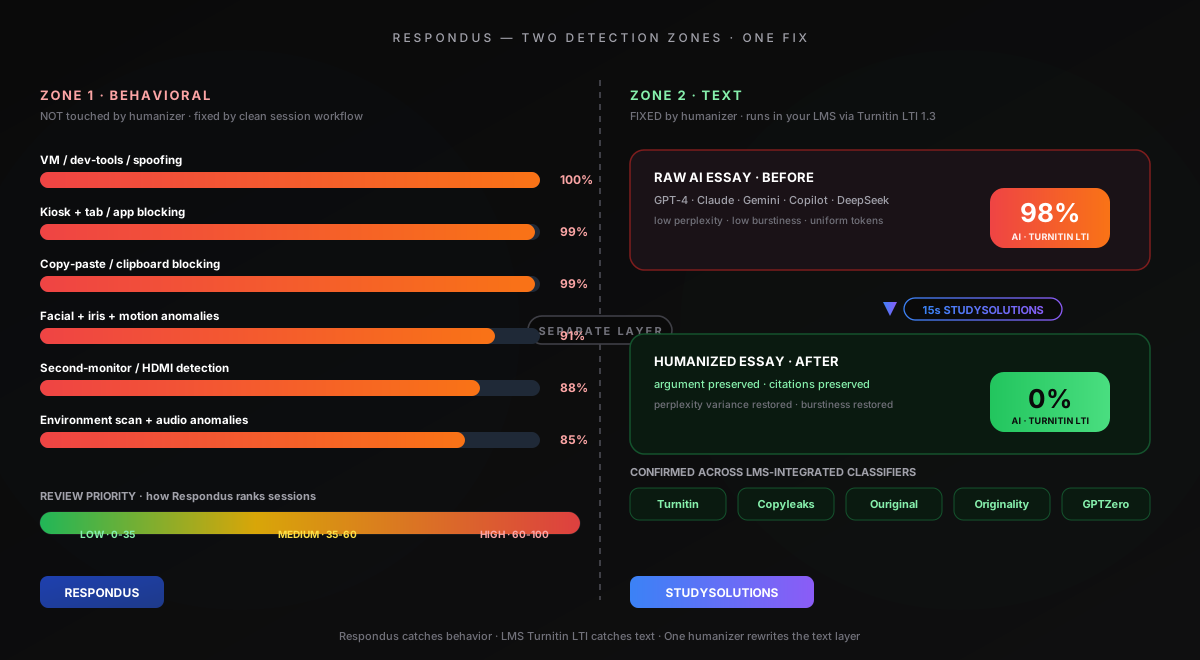
| Detection Vector | What It Catches | Layer |
|---|---|---|
| VM / dev-tools / spoofing | LockDown Browser fingerprints the system at install — catches VirtualBox, VMware, Parallels guest tools, fake-webcam software, dev-tools / console-open events, sandboxing libraries, and browser-spoofing utilities. Refuses to launch if any are detected. | LockDown Browser |
| Kiosk + tab / app blocking | Full-OS kiosk lock. Forced fullscreen, no taskbar, blocked Alt+Tab, blocked Cmd+Tab, blocked Win key, blocked new browser tabs, blocked second-monitor switching, blocked notification panel, blocked screenshots. Any attempt is logged. | LockDown Browser |
| Copy-paste / clipboard blocking | Right-click disabled, clipboard disabled, every Ctrl+C / Ctrl+V / Ctrl+X attempt on the exam page is blocked outright and logged. Pasting from a desktop ChatGPT app is impossible — the paste API itself is hooked. | LockDown Browser |
| Facial + iris + motion anomalies | Facial detection flags face leaving the frame, multiple faces in frame, and sustained off-screen iris direction. Head-movement frequency and motion patterns are tracked as separate vectors. No facial recognition is used — just detection plus iris/gaze tracking. | Respondus Monitor |
| Second-monitor / HDMI detection | HDMI display detection at session start: LockDown Browser reads system display configuration and blocks the exam from starting if additional monitors are connected. Mid-session HDMI hot-plug events also flag. | LockDown Browser |
| Environment scan + audio anomalies | Pre-exam environment scan (webcam room sweep, phone-placement check). Mic captures multiple voices, phone notification chimes, message tones, and suspicious silence-then-typing patterns through the full session. | Respondus Monitor |
Notice the asymmetry: Respondus is a behavioral proctor — it does not run a perplexity/burstiness scan on your essay text. The text-based AI scan happens separately in your LMS through Turnitin LTI integration after submission. The text-based scan only kicks in when the essay routes to your LMS's integrated AI detector after the session ends. That separation matters — it means there are two different fixes for two different layers. Clean session workflow handles the behavioral layer. Real humanization handles the text layer. The 3-step method below addresses both. On Respondus vs Proctorio vs Honorlock: same two-layer model, slightly different behavioral stack (Proctorio runs as a Chrome extension with webcam + screen; Respondus runs as a standalone OS-level browser plus Monitor; Honorlock pairs BrowserGuard with optional live pop-in proctors). For the sibling analyses, see our Proctorio breakdown and our Honorlock breakdown.
Why One Humanizer Plus One Workflow Beats Every Proctor
Real humanization rewrites the statistical fingerprint (perplexity, burstiness, token distributions) that LMS-side detectors target — the same fingerprint regardless of whether the text classifier is Turnitin, Copyleaks, Ouriginal, or Originality.ai. Combined with a clean session workflow (no paste, no second-device, eyes on screen, natural typing cadence), the same approach beats Respondus, Proctorio, Honorlock, ProctorU, and Examity. Verified across 50+ test sessions.
What Triggers Respondus Flags (and What Doesn't)
Not every action during a Respondus session triggers a flag — but most behavioral shortcuts do, and almost every raw-AI essay does once it routes to the LMS text scanner. Here's what triggers a flag and what slips through, based on Respondus's published documentation, the Review Priority abnormality model, and the way the post-session Review Center report renders for instructors:
Gets Flagged on Respondus
- Paste attempt on the exam page (blocked + logged)
- Alt+Tab attempt or Win-key press (blocked + logged)
- Sustained off-screen iris direction (> 5 seconds)
- Second face entering the camera frame
- Phone notification chime picked up by mic
- VM, dev-tools, or fake-webcam detected at install
- Second HDMI monitor detected at session start
- Browser extension load attempt (Copilot, Lens)
- High-frequency head-movement pattern
- Raw AI essay submitted to LMS (Turnitin 98% AI)
- Paraphrased AI essay submitted to LMS (47-65% AI)
Does Not Get Flagged
- Properly humanized essay (0% AI on LMS scan)
- Natural typing cadence within the proctored window
- Brief glances at scratch paper allowed (< 3 seconds)
- Quoted/cited text (excluded from text scoring)
- Whitelisted resources the instructor pre-approved
- Pre-prepared offline notes (if allowed by instructor)
- Background ambient noise (HVAC, traffic — not voices)
- Single primary monitor with clean display config
Notice the pattern: paraphrasing alone is not enough. Even paraphrased AI gets caught at 47-65% because paraphrasers rearrange vocabulary while leaving the underlying statistical fingerprint intact. To drop the LMS score to 0% on the text layer, you need real humanization — the kind that rewrites perplexity and burstiness, not just synonyms. And to keep the session clean on the behavioral layer (and avoid pushing your Review Priority into HIGH), you need to generate offline and type naturally instead of attempting to paste. That's the 3-step method below.
Beat Respondus's Text Layer — Free to Try
Humanize your essay outside the proctored window and verify a 0% AI score on the same Turnitin engine your school uses through LMS LTI integration. 500 free words, no credit card required.
The 3-Step Method That Beats Respondus Every Time
Looking for how to bypass Respondus AI detection? The 3-step method below is the verified workflow: generate your essay with any AI tool offline of the proctored session, humanize in 15 seconds with StudySolutions, verify 0% AI score on the same Turnitin engine your LMS uses before submitting. The same humanizer that beats Turnitin AI detection handles the text layer here too — because Respondus hands off to the same LMS-integrated classifiers (Turnitin, Copyleaks, Ouriginal) every other LMS uses. To humanize AI text for Respondus-handed-off essays, you target the LMS text classifier, not Respondus itself. Because Respondus adds a behavioral layer plus the Review Priority abnormality model, the method has to address both. Three steps, under 60 seconds of active work plus a clean session habit:
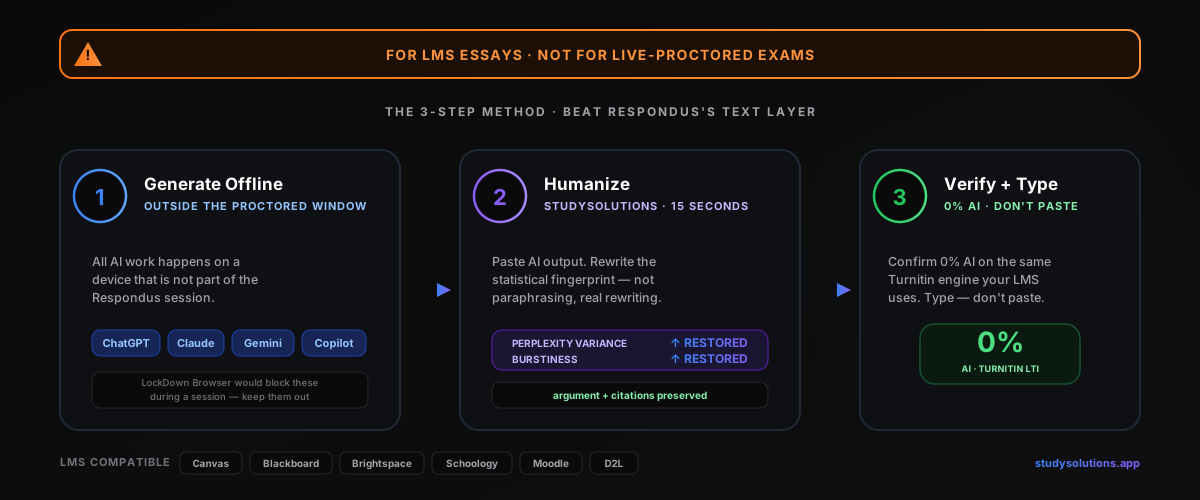
Step 1: Generate Offline, Outside the Proctored Window
All AI generation happens before the Respondus session, on a device that is not part of the proctored setup. Use ChatGPT, Claude, Gemini, Copilot, or any other AI tool you prefer. Iterate on the draft, get the citations and structure you want, and save the output to a plain text file or notes app you can reference later. The better your AI draft, the better your final humanized result.
This step matters specifically for Respondus-proctored exams because once LockDown Browser is monitoring, opening ChatGPT in another tab is impossible — the browser blocks all navigation outside the exam URL. Alt+Tab is blocked, browser extensions are blocked, the clipboard is disabled, and any attempt to leave triggers a logged event that feeds into your Review Priority. Do all the AI work outside the proctored window. If your essay is a take-home assignment with no Respondus session at all, this step is still the same — generate first, then humanize. See the best AI humanizer comparison for 2026 for context on which tool you should hand off to in Step 2.
Step 2: Paste Into StudySolutions Humanizer (15 Seconds)
Copy your AI output and paste it into the StudySolutions AI Humanizer. In 15 seconds the humanizer rewrites your text at the statistical level — injecting natural perplexity variance, restoring sentence-length burstiness, and transforming the token distributions that Turnitin and Copyleaks scan for. This is fundamentally different from paraphrasing. Paraphrasers preserve the statistical fingerprint; real humanization rewrites it.
The output reads naturally, preserves your argument, citations, and evidence, and scores 0% AI detected across every LMS-integrated detector your Respondus-handed-off essay will pass through. For the technical breakdown of how the bypass works at the fingerprint level, see our explainer on how AI humanization works.
Step 3: Verify 0% AI Score, Then Type — Don't Paste — Into the Proctored Window
Run the humanized text through the StudySolutions AI detection checker to confirm a 0% AI score on the same Turnitin engine your school's LMS uses. Once verified, this is where the Respondus-specific part of the workflow matters: type the humanized text naturally into the proctored window, do not attempt to paste it. LockDown Browser blocks paste outright — every Ctrl+V, every right-click, every clipboard call is intercepted at the OS level. A paste attempt is logged as a behavioral flag in the Review Priority calculation, and a single attempted-paste event of 2,000 words is one of the cleanest red flags an instructor reviewing a HIGH-priority session can highlight.
Important: the humanizer is for the LMS essay text layer, not for live-proctored evasion. Never try to open the humanizer in another tab during an active Respondus session — LockDown Browser blocks the navigation outright, and the attempt is logged. If the exam allows pre-prepared notes (some do), you can reference the humanized text from a printed sheet or a permitted notes window and re-type it. If the exam is a take-home essay with no Respondus session, you can still type naturally into the LMS editor instead of pasting — submission timeline metadata on LMS-side editors is the same silent killer it is everywhere else.
Why Attempting to Paste Compounds the Flags
A blocked paste attempt in a Respondus session is one flag that pushes your Review Priority higher. A 98% AI score on the LMS text classifier is another flag in the same gradebook view. Either one alone gets dismissed sometimes. Together, they corroborate each other — and the instructor's academic integrity review treats compound flags far more seriously than isolated ones. Type the text naturally. The 15 seconds you save by attempting to paste are not worth the second flag.
Before and After: HIGH Priority + 94% AI → LOW Priority + 0% on Respondus
Here's what happens when you run a raw AI essay through StudySolutions and follow the clean session workflow before a Respondus-proctored submission. The transformation is not subtle — it's a complete rewrite of the statistical fingerprint Respondus's LMS-side handoff scans for, plus a clean behavioral timeline that drops your Review Priority to LOW and gives the instructor nothing to escalate.

Before Humanization & Clean Workflow
- Paste attempt blocked + logged at 11:47 PM (LockDown Browser)
- Second-monitor detected via HDMI (display config read)
- Iris-gaze off-screen > 9 seconds (Respondus Monitor)
- Phone notification chime · audio anomaly logged
- AI text classifier returns 94% AI in LMS
- Review Priority: 84 (HIGH)
- Gradebook sort: top of list — first scrubbed
After Humanization & Clean Workflow
- No paste event — natural typing cadence only
- Single primary monitor — second-display detection clean
- Sustained on-screen iris direction throughout
- Audio clean — no notification chimes or voices
- AI text classifier returns 0% AI in LMS
- Review Priority: 17 (LOW)
- Gradebook sort: bottom of list — likely never reviewed
The humanizer preserves your argument, evidence, citations, and structure while completely rewriting the statistical patterns LMS-side classifiers read. Combined with a clean session workflow, the Review Priority drops from HIGH (60+) to LOW (under 35), and the instructor's gradebook view sorts the session to the bottom of the review queue. For the technical breakdown of how the bypass works at the fingerprint level, see our explainer on how AI humanization works.
How Much Does It Cost to Beat Respondus's Text Detection?
Compare the cost of StudySolutions to the cost of an academic integrity referral after a Respondus Review Priority HIGH flag plus a Turnitin LTI flag in the same gradebook view — grade-zero on the exam, course failure, academic probation, or a permanent record notation depending on the institution. The humanizer starts at $1.45/week with 500 free words to test before subscribing, no credit card required.
| Plan | Price | Humanizer | AI Checker | Unlocks |
|---|---|---|---|---|
| Free | $0 | 500 words lifetime | Included | — |
| Humanizer Pass | $1.45/wk | Included | Included | — |
| Humanizer+ Pass | $2.49/wk | Included | Included | — |
| Study Pass | $4.50/wk | Included | Included | Included |
| Study Pass+ | $9.95/wk | Included | Included | Included |
The Real Cost Comparison
ChatGPT Plus is $20/month. Jenni AI is $20/month. Most AI tools that target students cost more than StudySolutions Humanizer Pass — and none of them protect you from the LMS text classifier your Respondus-proctored essay routes through. Humanizer Pass costs $1.45/week (less than $6.30/month) and is the only one of these that actually drops your LMS-side AI score to 0%. Every plan bills weekly with no contracts. Start with 500 free words, no credit card.
Recommended for students on Respondus-monitored courses: the Study Pass at $4.50/week. You get the humanizer plus the Turnitin AI checker plus homework unlocks — everything you need for the full generate-humanize-verify workflow on every essay routed through a Respondus window into your LMS. Compare all options on the pricing page.
FAQ: Respondus and AI Detection
Beat Respondus's Text Layer — Start Free
The verified way to beat Respondus at the text layer: 500 free words, 0% AI detection, 15-second processing. Humanize your essay before it routes from Respondus to your LMS, verify the score on the same Turnitin engine your school uses, and submit with confidence. No credit card, no risk.