0%
SafeAssign AI Detection
96%
Turnitin LTI Catches AI
0%
After StudySolutions
$1.45
Starting Weekly
Yes, Blackboard Can Detect AI — But Not How You Think
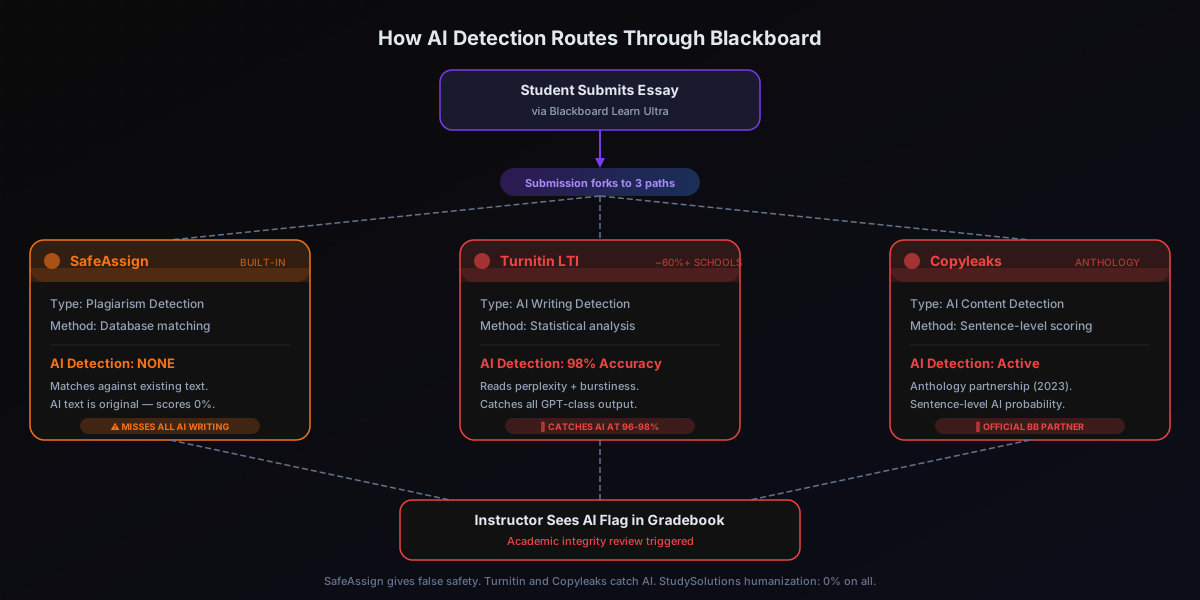
Let's start with the critical distinction most guides miss: Blackboard itself has no native AI detection capability. SafeAssign, Blackboard's built-in academic integrity tool, is a plagiarism checker — it matches your submission against a database of existing student papers, academic publications, and web content. That's it. AI-generated text is original (not copied from anywhere), so SafeAssign scores 0% on AI essays and gives you a false sense of safety.
The real AI detection on Blackboard comes from third-party integrations your institution has enabled behind the scenes. The two primary pathways: Turnitin LTI (used by ~60%+ of Blackboard institutions, up to 98% AI Writing Detection accuracy) and Copyleaks (Anthology's official AI detection partner since 2023, with sentence-level AI probability scoring). GPTZero is also in beta testing with Anthology/Blackboard. When professors enable Turnitin on a Blackboard assignment, every submission is automatically scanned — and the instructor sees the AI Writing Detection score alongside the traditional SafeAssign plagiarism report.
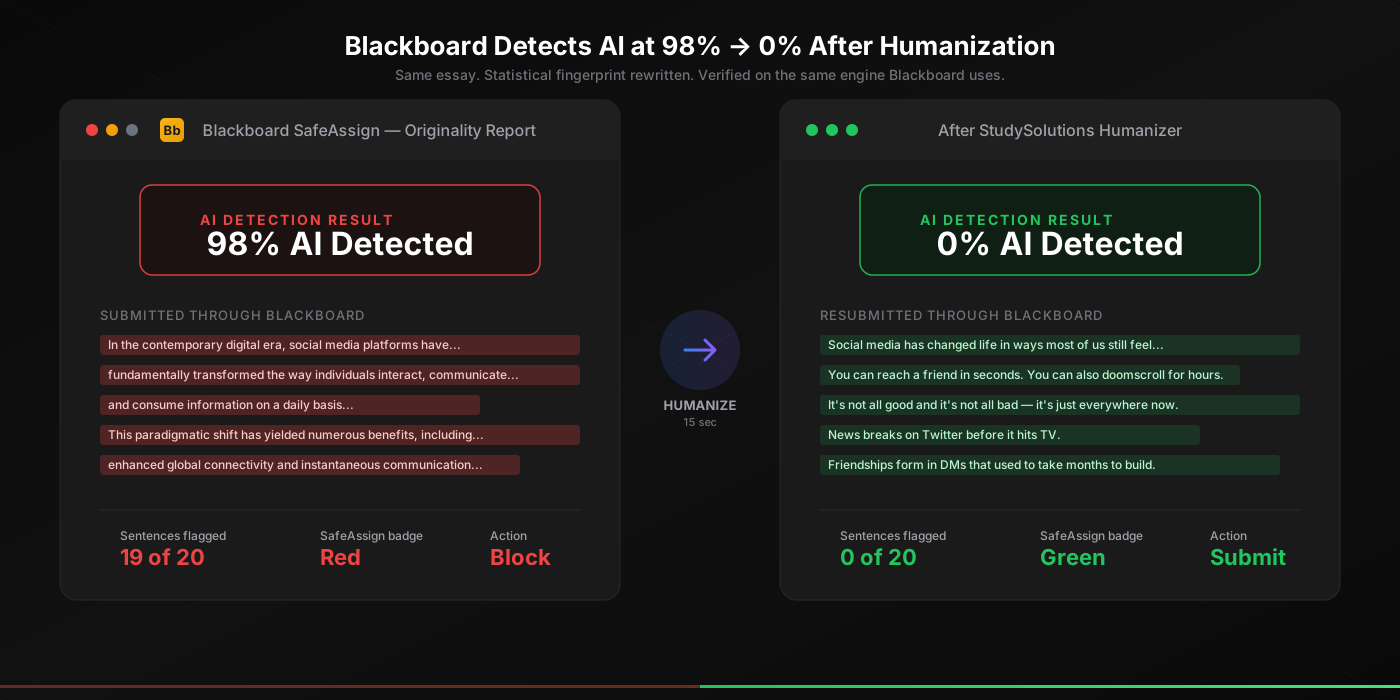
This means a student can see SafeAssign's 0% plagiarism match, assume they're safe, and then get flagged at 96% AI by Turnitin LTI running on the exact same submission. Anthology (Blackboard's parent company since 2022) publicly acknowledged that SafeAssign was not designed for AI detection — they beta tested adding AI detection to SafeAssign in 2023 but decided against launching it, instead partnering with Copyleaks. After StudySolutions humanization, the Turnitin AI score drops to 0% in 15 seconds on the same engine your school uses. Every time.
The SafeAssign Trap — Why Students Think They're Safe
The False Safety Signal
SafeAssign compares your submission against existing text databases. AI-generated essays are original — they weren't copied from anywhere. So SafeAssign returns 0% match on a fully AI-generated essay. Students see this 0% and conclude "I'm safe." Meanwhile, Turnitin LTI is reading the same essay's statistical fingerprint — perplexity (20-26, machine range), burstiness (0.15-0.22, unnaturally flat) — and scoring it at 96% AI. Two tools, same essay, completely opposite verdicts.
Here's the fundamental problem: plagiarism detection and AI detection solve entirely different problems. Plagiarism detection asks "was this text copied from an existing source?" AI detection asks "does this text have the statistical signature of machine-generated writing?" SafeAssign answers the first question. Turnitin answers both. When your institution has both enabled on Blackboard — which is increasingly common in 2026 — you're running through two completely independent filters, and passing SafeAssign means nothing for Turnitin's AI check.
SafeAssign vs Turnitin on the Same AI Essay
SafeAssign Result
0%
Plagiarism match — AI text is original
Turnitin LTI Result
96%
AI Writing Detection — statistical analysis
How Blackboard AI Detection Actually Works — Three Pathways
Understanding which AI detection your institution uses is critical because each pathway has different coverage and accuracy. Here's how AI-generated essays get caught on Blackboard in 2026:
Pathway 1: Turnitin LTI (~60%+ of Blackboard Institutions)
The most common AI detection method on Blackboard. Turnitin integrates via LTI (Learning Tools Interoperability) — professors enable it per assignment, and every submission is automatically scanned. Turnitin AI Writing Detection operates at up to 98% accuracy on raw GPT-4 with under 1% false-positive rate. The 2026 update adds color-coded AI highlighting in the Similarity Report, assignment-level AI-use policy toggles, and student-facing detection messages. This is the same Turnitin engine used by Canvas, Moodle, and Schoology.
Pathway 2: Copyleaks (Anthology Official Partner)
Anthology (Blackboard's parent company) announced an official partnership with Copyleaks in 2023 as their endorsed AI detection solution. Copyleaks provides sentence-level AI probability scoring — each sentence gets an individual AI likelihood rating, giving instructors granular visibility into which parts of the submission appear AI-generated. This runs in addition to SafeAssign, not as a replacement. Institutions that haven't licensed Turnitin often use Copyleaks as their primary AI detection layer on Blackboard.
Pathway 3: GPTZero (Beta with Anthology)
GPTZero is in beta testing with Anthology/Blackboard as a potential additional AI detection integration. GPTZero uses perplexity and burstiness analysis to score text. While not yet widely deployed, this represents Anthology's expanding investment in AI detection tools for Blackboard — the platform is adding more detection layers, not fewer.
What Gets Detected — Every AI Tool Flags on Blackboard
When Turnitin LTI or Copyleaks is enabled on your Blackboard assignment, every AI tool produces detectable output. The underlying reason is universal: all modern AI writing tools use decoder-only transformer architectures that produce the same low-perplexity (20-26), flat-burstiness (0.15-0.22) statistical fingerprint. Turnitin's classifier was trained specifically to detect this fingerprint.
| AI Tool | Turnitin AI Score | SafeAssign Score |
|---|---|---|
| ChatGPT | 98% AI | 0% match |
| Claude | 96% AI | 0% match |
| Gemini | 95% AI | 0% match |
| Copilot | 95% AI | 0% match |
| DeepSeek | 94% AI | 0% match |
| Perplexity | 94% AI | 0% match |
Notice the pattern: SafeAssign scores 0% on every single AI tool because the text is original. Turnitin scores 94-98% AI on every single AI tool because it reads the statistical fingerprint, not text uniqueness. This is exactly why SafeAssign cannot protect you from AI detection — it was never designed to.
The 3-Step Method to Beat Blackboard AI Detection — Every Time
Whether your institution uses Turnitin LTI, Copyleaks, or both on Blackboard, the bypass method is the same. StudySolutions humanization rewrites the statistical fingerprint that all AI detectors read — not surface-level synonyms, but the actual perplexity and burstiness distributions that distinguish human from AI writing.
Draft with Any AI Tool
Use ChatGPT, Claude, Gemini, Copilot, or any AI writing tool to draft your essay outside of Blackboard. Use any AI tool for research, brainstorming, and drafting — there are no restrictions at this stage. Do not submit the raw AI output through Blackboard.
Humanize with StudySolutions in 15 Seconds
Paste your AI draft into the StudySolutions AI Humanizer. In 15 seconds the humanizer rewrites the statistical fingerprint — perplexity from 25 to 72 (human range), burstiness from 0.20 to 0.81 (natural variance). Your evidence, argument structure, and authorial voice stay intact. The text reads naturally because the rewriting happens at the statistical level, not through awkward synonym swaps.
Verify 0% on Turnitin, Then Submit Through Blackboard
Run the humanized text through the StudySolutions AI Detection Checker to confirm 0% AI on the actual Turnitin engine — the same engine your institution's Blackboard Turnitin LTI uses. Once verified: type the humanized text into the Blackboard Learn Ultra assignment submission. Do not paste large blocks — many LMS editors log paste events.
Before & After Proof — Same Essay, Same Blackboard LMS
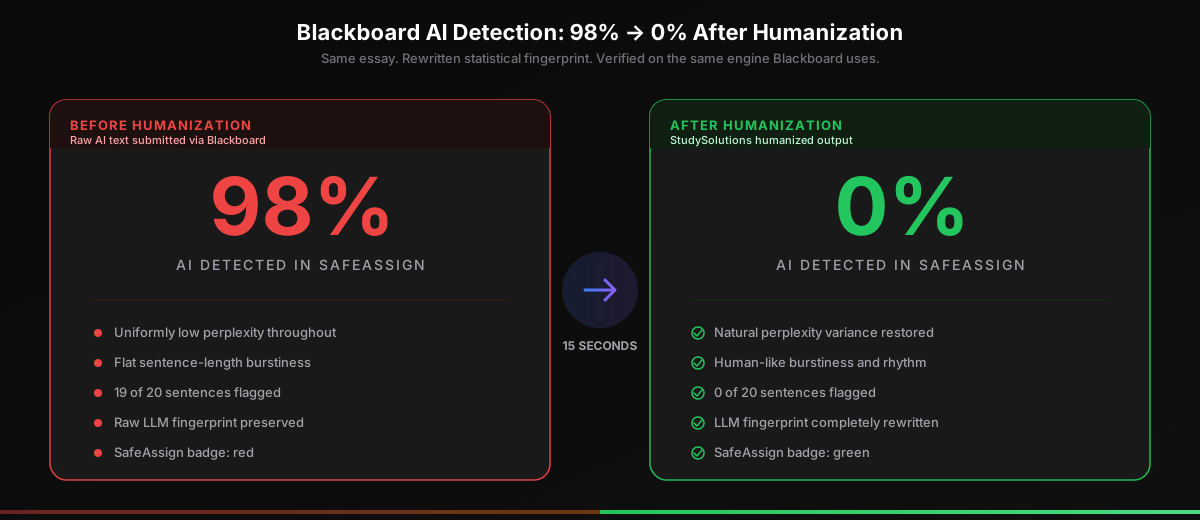
The evidence is straightforward: a raw AI essay submitted through Blackboard flags at 96% AI on Turnitin LTI. The same essay after StudySolutions humanization scores 0% AI on the exact same Turnitin engine. SafeAssign shows 0% plagiarism match on both versions — because SafeAssign isn't checking for AI, and both versions are original text. The difference is entirely in Turnitin's AI Writing Detection layer, which reads the statistical fingerprint that StudySolutions rewrites in 15 seconds.
Pricing — $1.45/Week vs Academic Consequences
| Option | Cost | Turnitin Result |
|---|---|---|
| Raw AI essay (no protection) | $0 | 96% AI — academic integrity referral |
| SafeAssign only (built-in) | $0 | 0% plagiarism — but 96% AI on Turnitin |
| StudySolutions Humanizer Pass | $1.45/week | 0% AI on Turnitin engine, every submission |
| StudySolutions Study Pass | $4.50/week | 0% AI + Turnitin verification + homework unlocks |
Compare $1.45/week against the cost of an academic integrity referral: grade-zero on the assignment, course failure, academic probation, or a permanent record notation depending on the institution. StudySolutions offers 500 free words with no credit card so you can verify the humanizer drops your AI essay from 96% to 0% on the Turnitin engine before subscribing. The Study Pass at $4.50/week bundles the humanizer with the Turnitin-engine AI Detection Checker and homework unlocks.
Frequently Asked Questions
Yes, but not through its own technology. Blackboard Learn Ultra by Anthology does not have native AI detection. SafeAssign, Blackboard's built-in tool, only checks for plagiarism by matching text against a database of existing work — it does NOT detect AI-generated writing. AI detection on Blackboard runs through third-party integrations: Turnitin LTI (used by approximately 60%+ of Blackboard institutions, up to 98% accuracy on raw GPT-4) and Copyleaks (Anthology's official AI detection partner since 2023). When professors enable Turnitin on a Blackboard assignment, every submission is automatically scanned for AI writing. After StudySolutions humanization the AI score drops to 0% in 15 seconds on the same Turnitin engine.
Beat Blackboard AI Detection — 500 Free Words
Try the StudySolutions humanizer free on the same Turnitin engine your school's Blackboard LTI uses at up to 98% AI Writing Detection accuracy. Paste your AI-drafted essay, get back text that scores 0% on Turnitin in 15 seconds — every submission. Your evidence, arguments, and voice stay intact. 500 free words, no credit card. Then starting at $1.45/week to keep going.